Showing posts with label Widget. Show all posts

Thursday, September 9, 2010

Make Your First Letter Big In Blog Post


See full size image
Often, You might have seen in newspapers or even in some blog posts that there are paragraphs in which the first letter of the first word of the first line is bigger in size as compared to the rest of the letters.This looks nice to see and many blogger uses this tricks. So this post helps you to implement this tricks.

You can also do the same thing in your blog posts—simply by Adding some CSS to your html code.Your post’s first letter (character) would become bigger than original font sizes.


Now, you might have a question–How to do this? 


Well, to implement this in your blog, all you need to do is to follow some steps which includes adding some CSS code in your html code, and you will have the first letter of your blog post bigger in size. Below picture shown you is the result of this tutorial.
Make First Letter Big in Size for Blog

Steps to make first letter big in your blog post are :-


  • Log in to your blogger account
  • On your dashboard, click on Layout (see the image below.)

Select   Blogger Layout

  • Now, click on Edit HTML to add code to templates (see the image below.)

Edit HTML


  • Then find the code]]></b:skin>and add following code above it 


.post-body:first-letter {
float:left;
color: #000000;
background:#ffffff;
line-height:80px;
padding-top:1px;
padding-right:5px;
font-family:times;
font-size:100px;
}


  • Save your templates and you finished with this.


read more...

Thursday, March 18, 2010

Related Post With Thumbnail Under Each Post And Increase Pageviews


Add related post with thumbnail.Look great and attractive 


LinkWithin is a blog widget that appears under each post, linking to related post your blog archive.This Gadgets index all stories from your blog archive, not just recent stories, making them accessible to new or casual readers of your blog who would not otherwise encounter them.Increase Pageviews, Keep Readers Engaged,The widget links to stories that are relevant and interesting to readers of a particular post, keeping them engaged with your blog, and increasing your traffic.
The widget is free and ad-free. It takes a minute to get the widget up and running on your blog, no signup required!

Get this Widgets
read more...

Animated Recent Post Blogger Widget


           This post is for let you know about the animated recent post widget,which look great when you add this on your blog.You can see the static image of it,which include name, thumbnail image, and date of post.And it look very attractive during runtime.

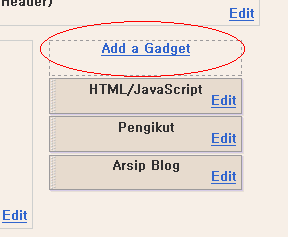
For bloggers you need to put the widget into the Sidebar Gadget (add gadget), copy all html below to that gadget:
1. Log in your blogger account
2.Go to Layout
3.Click on Sidebar Add a Gadget
4.Click on HTML/JavaScript
5.Now copy this code and paste in this page .


<script src="http://ajax.googleapis.com/ajax/libs/jquery/1.3.2/jquery.min.js" type="text/javascript"></script>
<style type="text/css" media="screen">
<!--
#spylist {
overflow:hidden;
margin-top:5px;
padding:0px 0px;
height:350px;
}
#spylist ul{
width:220px;
overflow:hidden;
list-style-type: none;
padding: 0px 0px;
margin:0px 0px;
}
#spylist li {
width:208px;
padding: 5px 5px;
margin:0px 0px 5px 0px;
list-style-type:none;
float:none;
height:70px;
overflow: hidden;
background:#fff url(http://dl.getdropbox.com/u/708209/scriptabufarhan/recentspy/post.jpg) repeat-x;
border:1px solid #ddd;
}


#spylist li a {
text-decoration:none;
color:#4B545B;
font-size:11px;
height:18px;
overflow:hidden;
margin:0px 0px;
padding:0px 0px 2px 0px;
}
#spylist li img {
float:left;
margin-right:5px;
background:#EFEFEF;
border:0;
}
.spydate{
overflow:hidden;
font-size:10px;
color:#0284C2;
padding:2px 0px;
margin:1px 0px 0px 0px;
height:15px;
font-family:Tahoma,Arial,verdana, sans-serif;
}


.spycomment{
overflow:hidden;
font-family:Tahoma,Arial,verdana, sans-serif;
font-size:10px;
color:#262B2F;
padding:0px 0px;
margin:0px 0px;
}


-->
</style>


<script language='JavaScript'>


imgr = new Array();


imgr[0] = "http://i43.tinypic.com/orpg0m.jpg";


imgr[1] = "http://i43.tinypic.com/orpg0m.jpg";


imgr[2] = "http://i43.tinypic.com/orpg0m.jpg";


imgr[3] = "http://i43.tinypic.com/orpg0m.jpg";


imgr[4] = "http://i43.tinypic.com/orpg0m.jpg";
showRandomImg = true;


boxwidth = 255;


cellspacing = 6;


borderColor = "#232c35";


bgTD = "#000000";


thumbwidth = 70;


thumbheight = 70;


fntsize = 12;


acolor = "#666";


aBold = true;


icon = " ";


text = "comments";


showPostDate = true;


summaryPost = 40;


summaryFontsize = 10;


summaryColor = "#666";


icon2 = " ";


numposts = 10;


home_page = "http://www.latestbloggertricks.com/";


limitspy=4
intervalspy=4000


</script>


<div id="spylist">
<script src='http://dl.getdropbox.com/u/708209/scriptabufarhan/recentspy/recentpostthumbspy-min.js' type='text/javascript'></script>
</div> 


6.Replace "www.latestbloggertricks.com" in your blog name.
7. Click on Save and that's it.

read more...

Wednesday, March 17, 2010

How To Add Social Bookmarking Button[SocioFluid]


You want to add social bookmarking buttons in your blog you always want to add a nice, good looking buttons. SocioFluid is one of the most popular social bookmarking widget generator. Its easy to install and you can change buttons icon size too.
To add SocioFluid Bookmarking widget below posts:
Step 1 :
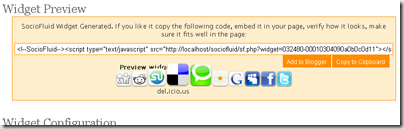
preview
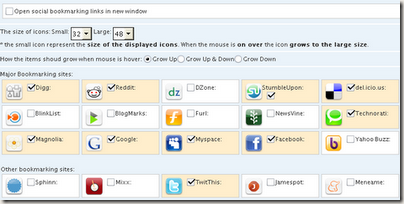
  • If you are not like it you can customize it, you can add or remove icons and change size of icon.
  • If you are not like it you can customize it, you can add or remove icons and change size of icon.
so22
  • scroll down at the end of the page and press generate widget button:
  • If you want to add the widget below each blog posts click on 'Copy to Clipboard' to copy the code. But if you want to add the widget other place like sidebar, footer etc you can use 'Add to Blogger' or 'Copy to Clipboard'.
Step 2 :
  • Go to Layout--->Edit HTML---->Click on Expand widget templates.
  • Now paste your widget code after the line .
  • Click on "Save Templates" and you are done.
    read more...

    Thursday, March 11, 2010

    10 Facebook Widgets For Your Websites And Blog


    Facebook Widgets For Website And Blog

              Facebook is the largest social networking site with more than 400 million active users and is growing larger every day! Make sure to use these Facebook widgets to connect with your large Facebook audience through your blog or website. You can use these tools to easily share certain profile information, websites, blogs, and businesses with the Facebook community.

    Personal Profile Widgets

    Profile Badge
    Create a Facebook profile badge to share selected profile information on your website. A profile badge will allow your users to easily connect with you and add you as a friend.


    Photo Badge
    This photo badge allows you to share your Facebook photos on websites and blogs. Choose from a vertical, horizontal, or two-column layout and also choose the number of photos to be displayed.


    Fan Badge
    Display your Facebook fan pages for all to see.


    Website or Business Widgets

    Share Button
    A powerful facebook widget which allows your visitors to share your content on Facebook!


    Fan Box
    Lets your users easily become a fan of your site and also allows them to view your Facebook page stream.


    Page Badge
    Lets you share your Facebook page (one that you have created) information on your website.


    Twitter Link
    Connect your Facebook page with Twitter. Whenever you update your Facebook fan page your twitter followers will be updated as well with a tweet.


    Developers Widgets


    Publishing to Facebook
    This allows your users to publish their content and activity to Facebook.


    Comments Box
    Lets your users comment on your website content with their Facebook account.


    Live Stream
    Lets Facebook users to post and share content in real-time.
    read more...

    Saturday, March 6, 2010

    How To Add Digg Button to Blog

                           
                          Social bookmarking sites can play a lead role in providing decent traffic and better PR. You must associate social bookmarking icons to each of your blogger blog posts so that your visitors can submit your posts to different social networking sites. Like ReTweet button, Digg button is also known as one of the most powerful social bookmarking icons, keeping Digg’s huge traffic and popularity in eye. If you want to give more mileage to each of your posts, you should add Digg button to each of your posts. Adding a Digg button is simple, takes a maximum of 5 minutes but works like one of the major pillars for your blog.

    Adding Digg Button to Blogger blog posts


    1. Login to your Blogger dashboard.
    2. Navigate to Layout >> Edit HTML
    3. Back up your blogger HTML template
    4. Expand your widgets templates by checking the box
    5. Search for  inside your template (Press Ctrl+F to search) .


    <p><data:post.body/></p>


    6. Add the following piece of code just before it to add the "digg button to right above every post"
    <div style='float:right; margin-left:10px;'>
    <script type='text/javascript'>
    digg_url = '<data:post.url/>';
    </script>
    <script src='http://digg.com/tools/diggthis.js' type='text/javascript'/>
    </div>

    7. Click on Save Template to save the changes you have made You are done. 
    read more...

    How To Add ReTweet Button To Blogger

    Add Retweet Button To Every Blog Post 


    You, New Blogger often seen TweetThis  retweet small button  button, and you have the questions  "how to add retweet button to my blog ??"


    There a lots of ways and platforms to promote your blog in order to get traffic. But the first blog promotion starts from your blog posts itself. You should design your posts with all necessary blogger social bookmarking icons, so that people can spread it’s reach using different web services. There are different buttons that you can use on your blogger posts like Digg, Yahoo! Buzz, StumbleUpon, Mixx, Twitter etc. Here I’m going to show you the tutorial to add a Twitter or Retweet button to your blogger blog posts. Yes, you can use Twitter to promote your blog and you will not only get some followers to your Twitter account but will also get decent traffic to your blog.


    If someone likes your post, he can click on the Retweet button to post the topic with it’s URL in his twitter account and all his followers would get notified about this. This is the simple yet effective way to promote your blog posts on twitter. There are two types of Retweet buttons available to insert in your blogger posts. One is the most common sized and another one is the small sized. Look at the below screenshot.
    different twitter buttons for blogger posts
    "How to Add Twitter (Retweet) Button to Blogger Posts"
    1. Login to your blogger dashboard.
    2. Navigate to Layout >> Edit HTML >> Expand Widget Templates
    3. Search for and paste the following codes just before or after it.
    <div class=’post-header-line-1′/>


    >> Adding the code before <div class=’post-header-line-1′/> will show the Retweet button on the top of your post.


    >> while adding after <div class=’post-header-line-1′/> will show the Rettweet button on the bottom of your post.


    For Full Button, use the following code.
    retweet button
    <div style=’float:right; padding: 5px 5px 5px 5px’>
    <script type=’text/javascript’>
    tweetmeme_url='<data:post.url/>';
    </script>
    <script src=’http://tweetmeme.com/i/scripts/button.js’ type=’text/javascript’>
    </script> </div>


    Compact sized button, use these codes.


    retweet small button
    <div style=’float:right; padding: 5px 5px 5px 5px’>
    <script type=’text/javascript’>
    tweetmeme_url='<data:post.url/>';
    tweetmeme_style = ‘compact‘;
    </script>
    <script src=’http://tweetmeme.com/i/scripts/button.js’ type=’text/javascript’>
    </script> </div>

    4. Save the templates, and you're done.


    Have problem..?? Ask
    read more...